I was halfway through a critical systems audit last Tuesday when my laptop decided to stage a protest. The fans kicked into a high-pitched, desperate whine that sounded more like a jet engine than a piece of hardware, and the chassis became so hot I actually had to pull my hands away. I didn’t need a $100 specialized cooling stand or a complex software suite to fix it; I just needed to stop treating my workspace like a chaotic junk drawer. Most of the advice you find online about how to keep your laptop cool is either way too expensive or involves downloading “optimization” tools that just end up hogging more RAM.
I’m not here to sell you on more digital clutter or unnecessary gadgets. Instead, I’m going to give you a few battle-tested adjustments to your physical environment and your workflow that actually move the needle. We’re going to focus on simple, high-impact changes that reduce thermal throttling and protect your hardware without adding any extra friction to your day. Let’s get your machine back to a functional temperature so you can actually finish your work.
Table of Contents
Spotting the Signs of Laptop Overheating Before Its Too Late
## Spotting the Signs of Laptop Overheating Before It’s Too Late
You shouldn’t wait for your computer to suddenly shut down mid-spreadsheet to realize there’s a problem. Most of the time, your hardware is trying to tell you it’s struggling. The first red flag is almost always the noise level. If your fan sounds like it’s preparing for takeoff just because you opened three Chrome tabs, you’re already in the danger zone. Beyond the noise, keep an eye out for sudden, inexplicable lag. This is often a result of preventing laptop thermal throttling—your system is intentionally slowing itself down to avoid permanent hardware damage.
Another subtle indicator is the physical heat you feel under your palms. If the chassis feels uncomfortably hot, your internal components are likely screaming for help. I’ve found that a little bit of laptop CPU temperature monitoring via a simple, free utility can take the guesswork out of the equation. If you see those numbers climbing steadily while you’re doing basic tasks, it’s time to stop ignoring the warning signs and start looking at your airflow. Don’t wait for the smell of ozone to tell you it’s too late.
Improving Laptop Airflow Without a Degree in Engineering
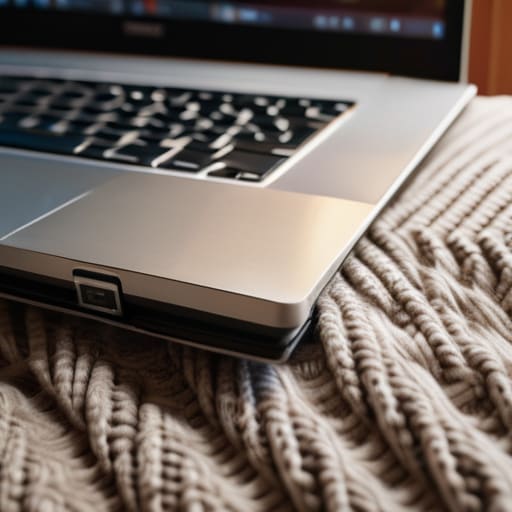
First, let’s address the most common mistake I see: treating a laptop like a coaster. If you’re working from your couch or a bed, you’re essentially suffocating the machine. Soft surfaces like blankets or duvets block the intake vents, trapping heat against the chassis. It’s a quick way to trigger preventing laptop thermal throttling issues, where your computer intentionally slows itself down just to stay alive. If you can’t move to a desk, at least prop the back up with a small book or a dedicated stand to create a gap for air to circulate.
If you’re serious about improving laptop airflow, investing in one of the best laptop cooling pads is a solid move. They aren’t just gimmicks; they provide a consistent stream of external air that helps stabilize your internal temps. However, don’t just rely on external fans. If your machine sounds like it’s preparing for takeoff, you likely have dust buildup. A few simple laptop fan cleaning tips—like using a can of compressed air to blow out the vents—can do more for your hardware than any expensive software “optimizer” ever will.
Three More Ways to Stop the Heat Soak
- Clean out the dust. I know, it sounds like a chore, but if you haven’t used a can of compressed air on your vents in six months, your fans are likely fighting a losing battle against a layer of lint. A quick blast once a month keeps the airflow from choking.
- Audit your background processes. If your fan is screaming while you’re just staring at a spreadsheet, you probably have twenty Chrome tabs and a rogue software update running in the background. Open your Task Manager (or Activity Monitor) and kill whatever is eating your CPU for no reason.
- Watch your power settings. Most laptops are set to “High Performance” by default, which is basically telling the processor to run hot even when you’re just writing an email. Switch to “Balanced” or “Power Saver” when you don’t need raw speed; it keeps the temperature down significantly.
- Ditch the heavy peripherals. If you’re working at a desk, try to avoid plugging in every single USB device you own at once. Each one draws a little power and adds a tiny bit of heat, and when you add them all up, you’re just making your laptop work harder to stay cool.
- Check your battery health. If your laptop is getting hot even when you aren’t doing much, your battery might be failing. A degrading battery generates excess heat during charging cycles. If it’s getting suspiciously warm while plugged in, it might be time to stop patching the problem and just replace the cell.
The Bottom Line
Stop using your laptop on soft surfaces like blankets or pillows; use a hard, flat surface to keep the vents from choking on fabric.
If your fan sounds like it’s trying to take off, stop what you’re doing and give the machine ten minutes of breathing room.
Don’t overcomplicate it—sometimes a simple blast of compressed air or a cheap cooling pad is all you need to stop the thermal throttling.
The Cost of Neglect
“Your laptop isn’t a heating pad, and treating it like one is just a slow way to turn a thousand-dollar tool into a very expensive paperweight. If you’re constantly fighting the fan, you’re not being productive; you’re just managing a crisis that shouldn’t exist.”
Diane Sterling-Voss
Stop Fighting the Heat
At the end of the day, keeping your laptop from turning into a space heater doesn’t require a complex overhaul of your entire workstation. It’s about the basics: stop using it on soft surfaces like blankets, keep the vents clear, and actually listen to what that frantic fan noise is trying to tell you. If you catch the thermal spikes early and maintain a bit of physical space around the device, you’re already ahead of 90% of users. It isn’t about perfection; it’s about implementing a few low-effort, high-impact habits that prevent a hardware meltdown from derailing your entire afternoon.
We spend so much of our lives managing external chaos, but there is a certain quiet satisfaction in mastering the small, mechanical details of our immediate environment. When your tools work reliably, you stop thinking about them, and that’s exactly where you want to be. My goal isn’t to turn you into a tech expert, but to help you eliminate these small, unnecessary frictions. Get your laptop on a hard surface, give it some room to breathe, and then get back to the work that actually matters. Your hardware will thank you, and more importantly, you will have one less thing to worry about.
Frequently Asked Questions
Do I actually need to buy a cooling pad, or will just moving to a desk do the trick?
Look, if you’ve been working on your lap or a soft duvet, just move to a hard, flat desk. That alone fixes 80% of airflow issues by letting the vents actually breathe. Don’t waste money on a cooling pad unless you’re running heavy-duty software or your laptop is a notorious heat-trap even on a desk. Test the desk method first. If it’s still screaming at you, then consider the pad.
Is it worth trying to open up my laptop to clean the dust out myself, or am I just asking for a broken hinge?
Look, I’m all for DIY, but don’t let enthusiasm override caution. If you have the right precision screwdrivers and a steady hand, cleaning the fans can be a game-changer. But if you’ve never opened a piece of hardware before, you aren’t just risking a broken hinge—you’re risking a fried motherboard. If it’s under warranty, don’t touch it. If not, watch three tutorials first. If you feel hesitation, take it to a pro.
Can software settings, like power modes or background apps, really make a dent in how hot my machine gets?
Absolutely. If your hardware is the engine, your software is the driver—and right now, your driver is likely flooring it unnecessarily. You don’t need a degree to see that too many background apps are basically running a marathon in the background of your processor. Switch your power mode from “Best Performance” to “Balanced,” and kill those resource-hogging browser tabs. It’s about reducing the workload so the fans don’t have to work overtime.