I spent three hours last Tuesday staring at a spinning loading icon, locked out of my own primary email because a “security update” had decided my password wasn’t enough, but my recovery method was non-existent. It was a classic case of being too secure for my own good, and frankly, it was a massive waste of my time. Most people think learning how to set up two factor authentication is going to be some grueling, multi-day IT project that requires a degree in computer science. They think it’s going to be a constant, annoying friction point in their workday. It doesn’t have to be.
I’m not here to give you a lecture on cybersecurity theory or sell you on some expensive, proprietary hardware key you’ll lose in your couch cushions by next month. My goal is to show you the path of least resistance. I’m going to walk you through the most efficient ways to handle how to set up two factor authentication so you can secure your digital life and then actually get back to work. We’re going to focus on systems that work in the real world—the kind that protect your data without becoming a second job.
Table of Contents
Choosing Your Weapon Authenticator App vs Sms Codes
When you start looking at your options for securing online accounts, you’ll quickly realize there isn’t a one-size-fits-all answer. Most people default to SMS codes because they’re easy—you get a text, you type the numbers, you move on. But let’s be honest: relying on text messages is the bare minimum. It’s vulnerable to SIM swapping, and if your phone dies or loses signal in a dead zone, you’re locked out of your own life. It works in a pinch, but it’s not a robust system.
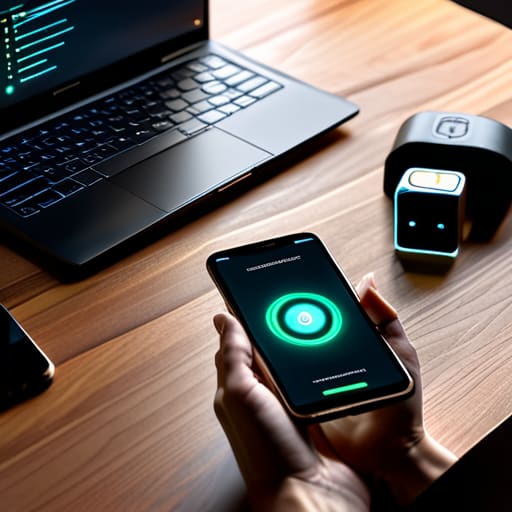
If you want to actually stop worrying about unauthorized access, you need to move toward an authenticator app. When comparing authenticator app vs sms codes, the app wins on sheer reliability and security. Apps like Authy or Google Authenticator generate codes locally on your device, meaning they don’t rely on a cellular network to function. It’s a minor shift in your workflow, but it’s a massive upgrade in peace of mind. Just make sure you save your backup codes in a physical location—like that paper planner I’m always carrying—so a lost phone doesn’t become a catastrophe.
Securing Online Accounts Without Losing Your Mind

The biggest mistake people make when securing online accounts is treating security like a one-time chore rather than a system. If you set it up once and then lose your phone or forget your password, you’re going to end up locked out of your own digital life, and that is the exact kind of friction I try to help people avoid. To prevent this, you need a contingency plan. I always tell my clients to treat backup codes for 2FA like a physical spare key to your house; print them out, put them in a drawer, and forget about them until you actually need them.
Don’t try to overhaul every single account you’ve ever created in one sitting. That’s a recipe for burnout. Instead, pick your “high-value” targets—your primary email, your bank, and your main social accounts—and secure those first. Once those are locked down, you’ve already done 80% of the heavy lifting in preventing unauthorized access. It’s about building a sustainable habit, not running a marathon you didn’t train for.
Five Rules for a Frictionless Setup
- Print your backup codes immediately. When you set up 2FA, most sites give you a list of emergency recovery codes. Don’t just leave them in a tab that’s going to close; print them out or write them in that physical planner of mine. If you lose your phone, those codes are the only thing standing between you and a very long, very frustrating afternoon spent arguing with customer support.
- Prioritize authenticator apps over SMS whenever possible. Text messages are fine for a quick fix, but they’re vulnerable to SIM swapping. Using an app like Authy or Google Authenticator is a more robust system that doesn’t rely on your cellular carrier’s stability.
- Use a dedicated password manager to house your 2FA seeds. If you’re going to do this right, you need a central, encrypted hub. Trying to manage a dozen different security protocols manually is exactly the kind of mental friction I’m trying to help you avoid.
- Don’t try to secure everything in one sitting. If you look at your entire digital life and think, “I need to secure every single account today,” you’ll burn out by lunch. Pick your “Big Three”—email, banking, and your primary social account—and start there. Build the habit, then expand.
- Set up a secondary device as a fail-safe. If your security system only lives on one piece of hardware, you haven’t built a system; you’ve built a single point of failure. Ensure your authenticator app is synced across a tablet or a backup phone so a spilled coffee doesn’t lock you out of your life.
The Bottom Line
Stop using SMS codes whenever possible; they’re a security vulnerability you don’t need. Use an authenticator app to keep things fast and much harder to intercept.
Set up backup codes immediately and tuck them somewhere safe. If you lose your phone without a backup plan, you’re looking at a massive, unnecessary headache to regain access.
Don’t try to do everything at once. Pick your three most critical accounts—email, banking, and your primary social media—and secure those first. You can do the rest when you actually have the bandwidth.
The Goal Isn't Perfection, It's Peace of Mind
“Setting up 2FA isn’t about becoming a cybersecurity expert; it’s about building a simple, automated barrier so you can stop obsessing over your passwords and get back to your actual life.”
Diane Sterling-Voss
Final Thoughts on Staying Secure
Look, I know setting this up feels like one more digital chore on an already overflowing to-do list. But once you’ve picked your method—ideally an authenticator app over those finicky SMS codes—and rolled it out across your primary accounts, the heavy lifting is done. You don’t need to be a cybersecurity expert to protect your data; you just need to build a few basic, repeatable systems that work in the background. Get your 2FA active on your email, your banking, and your primary social accounts, and then stop obsessing over it. You’ve built the perimeter; now you can let it do its job.
At the end of the day, my goal isn’t to turn you into a paranoid tech enthusiast. It’s about reducing the “what if” noise in your head so you can focus on things that actually require your attention. Security shouldn’t be a second job; it should be a quiet, reliable foundation that allows you to move through your digital life with actual peace of mind. Secure your accounts, close the tabs, and get back to your real life. You’ve earned the right to stop worrying about things you can’t control.
Frequently Asked Questions
What happens if I lose my phone or get a new number—am I just locked out of everything?
This is the part that keeps people from actually setting up 2FA, and I get it. It’s a valid fear. But if you do this right, you aren’t locked out. When you enable 2FA, most services give you “backup codes”—think of these as your emergency keys. Print them out or write them in that paper planner of yours. If your phone dies or you switch carriers, those codes are your way back in. No panic required.
Is it actually worth the extra thirty seconds every time I log in, or is this just overkill?
Look, I get it. That extra thirty seconds feels like a tax on your morning. But here’s the reality: a password is just a flimsy gate, and hackers have automated tools to kick it down in seconds. Spending thirty seconds on a prompt is a tiny price to pay to avoid the absolute nightmare of a hijacked bank account or a locked-out email. It’s not overkill; it’s just basic maintenance for your digital life.
Can I use the same authenticator app for all my different accounts, or do I need a separate one for everything?
You can—and absolutely should—use one app for everything. Trying to manage a different app for every service is just creating more friction, which is exactly what we’re trying to avoid. Whether you use Google Authenticator, Authy, or Bitwarden, pick one reliable tool and stick to it. It centralizes your security and keeps your digital life from turning into a disorganized mess. One app, one system, less mental load.