I spent fifteen years in corporate operations, and if there is one thing I’ve learned, it’s that people love to overcomplicate things that should be simple. I see these endless lists of “essential” remote job interview tips that suggest you need a professional studio lighting kit and a $300 microphone just to prove you can hold a conversation. Honestly? That is a waste of mental energy. Most hiring managers aren’t looking for a cinematographer; they’re looking for someone who can communicate clearly without their cat walking across the keyboard or their internet cutting out mid-sentence.
I’m not here to sell you on a high-tech production setup or some performative “hustle” ritual. Instead, I want to give you a few battle-tested systems that actually work when you’re sitting in your living room five minutes before the call starts. We’re going to focus on the low-effort, high-impact tweaks—like testing your audio and organizing your physical space—that ensure you show up looking composed and prepared. Let’s cut through the noise and focus on what actually gets you the job.
Table of Contents
Testing Internet Connection for Interviews Without the Panic
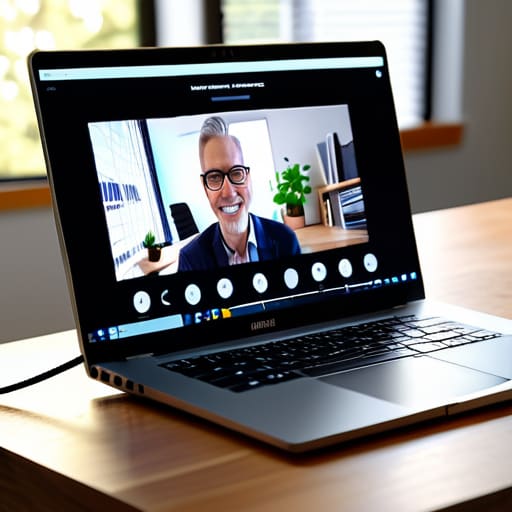
Look, nothing kills your confidence faster than your screen freezing right as you’re making a crucial point. I’ve been there, and it’s a nightmare. When it comes to testing internet connection for interviews, don’t just assume your Wi-Fi is fine because Netflix works in the living room. During a high-stakes call, you need stability, not just speed. If possible, plug directly into your router with an Ethernet cable. It’s an old-school move, but it eliminates the variables that cause those jittery, pixelated frames that make you look unprofessional.
If you have to rely on Wi-Fi, run a speed test at least twenty minutes before the call starts. If the numbers look low, move your desk closer to the router or ask whoever else is in the house to hold off on heavy streaming until you’re done. Part of a solid remote interview technical setup is managing the environment around you, not just your own hardware. A little bit of preemptive troubleshooting saves you from that frantic, mid-interview scramble to reset the router.
A Low Effort Remote Interview Technical Setup That Works

You don’t need a studio-grade ring light or a high-end DSLR to look competent. Most of the time, you just need to avoid looking like you’re calling from a dark basement. Position yourself facing a window for natural light, or grab a basic desk lamp and place it behind your monitor. The goal is even illumination on your face so you don’t look like a silhouette. As for your professional background for video calls, keep it simple. A clean bookshelf or a plain wall is infinitely better than a cluttered kitchen or a bed in the frame. If your space is a disaster, don’t stress—just use a subtle blur filter.
When it comes to audio, prioritize clarity over everything else. If you have wired earbuds with a decent mic, use them. Bluetooth headphones are convenient, but they can occasionally lag or die mid-sentence, which is a distraction you don’t need. Finally, remember that eye contact during virtual meetings isn’t about staring into the eyes of the person on the screen; it’s about looking directly into the camera lens. It feels awkward for a second, but it makes a massive difference in how you connect.
Five Low-Friction Ways to Handle the Actual Conversation
- Treat your background like a workspace, not a stage set. You don’t need a professional studio; you just need a tidy corner and zero visual distractions. If your room is a mess, just face a plain wall or use a subtle blur filter. Don’t waste twenty minutes moving furniture.
- Script your “elevator pitch,” but don’t read it. Write down three bullet points of your biggest wins and keep them on a post-it note stuck to your monitor. It keeps your eyes near the camera and prevents that “deer in the headlights” look when they ask the obvious questions.
- Manage the audio lag by embracing the pause. When you finish a sentence, wait two full seconds before moving on. It feels awkward, but it prevents that annoying “no, you go ahead” dance that happens when two people talk over a digital delay.
- Keep a physical notepad and a single pen within arm’s reach. Taking notes by hand shows you’re actually listening, and it’s much faster than trying to type on a keyboard, which makes you sound like you’re in a frantic Slack conversation.
- Have a “Plan B” for the inevitable tech glitch. If your Wi-Fi dies or the app crashes, don’t panic. Have the recruiter’s phone number or email ready to go so you can send a quick, calm note immediately. Showing you can handle a minor crisis is actually a subtle way to demonstrate competence.
The Bottom Line for Your Next Call
Don’t aim for studio-quality production; aim for stability. If your lighting is decent and your audio doesn’t crackle, you’ve already won the technical battle.
Build a “pre-flight” checklist that takes five minutes. Testing your mic, camera, and link ten minutes prior prevents the frantic, high-cortisol scramble right before the interviewer logs on.
Prioritize reliability over aesthetics. A simple, clean background and a wired internet connection beat a fancy ring light and a shaky Wi-Fi signal every single time.
## The Goal of Preparation
“The point of a technical checklist isn’t to achieve perfection; it’s to eliminate the small, frantic distractions that eat up your mental bandwidth right when you need to be present and professional.”
Diane Sterling-Voss
Final Thoughts Before You Log On
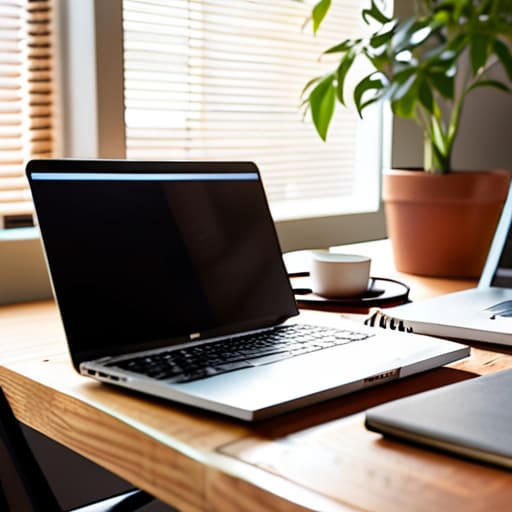
At the end of the day, remote interviewing isn’t about having a professional studio setup or a high-end cinematic lighting kit. It’s about removing the technical friction that pulls your focus away from the actual conversation. If you’ve tested your connection, cleared your desk of unnecessary clutter, and ensured your audio is crisp, you’ve already done the heavy lifting. You don’t need a perfect environment; you just need a functional one. Once you’ve implemented these small, battle-tested systems, you can stop worrying about whether your Wi-Fi will drop or if your camera is angled awkwardly, and start focusing on the person on the other side of the screen.
Remember, the goal of all this preparation isn’t to perform a technical miracle—it’s to create enough mental bandwidth so you can actually show up as yourself. When the tech is predictable, your brain is free to do what it does best: connect, solve problems, and demonstrate your value. Don’t let the digital medium overshadow your expertise. Trust the systems you’ve put in place, take a breath, and go into that call with the confidence that comes from being prepared for the reality of the situation. You’ve got this, and more importantly, you’re ready to get back to what matters.
Frequently Asked Questions
What do I do if my Wi-Fi inevitably cuts out halfway through the conversation?
If your Wi-Fi dies mid-sentence, don’t panic and don’t spend ten minutes rebooting the router while they stare at a frozen screen. Immediately switch to your phone’s cellular data. Have your phone nearby—not in another room—and keep the Zoom or Teams app ready to go. If the connection is too unstable for video, send a quick text or email via data to let them know you’re switching to audio. Move fast, then reset.
How much "professional" background setup is actually necessary before it starts looking like I'm trying too hard?
Look, if you’re spending more than fifteen minutes adjusting a ring light or hunting for the perfect “minimalist” bookshelf, you’ve gone too far. You’re there to do a job, not audition for a lifestyle vlog. Aim for “clean and quiet.” A plain wall and decent natural light are plenty. If your background looks like a lived-in office rather than a studio set, you’re doing just fine. Don’t let the aesthetics drain your actual energy.
Is it worth investing in a dedicated webcam, or can I just get by with my laptop's built-in camera?
Look, unless you’re interviewing for a high-end creative role where your visual presentation is part of the job, your laptop camera is fine. Don’t waste the money yet. Most built-in webcams look grainy because of poor lighting, not poor hardware. Instead of buying a new lens, spend twenty bucks on a decent ring light or just sit facing a window. Better light beats a better camera every single time. Keep it simple.